

An MT4 import begins with the account's closed-history report. Santrade reads the supported HTML or HTM file, checks it against the selected trading account and lets you inspect the result before saving. The process transfers recorded history without connecting to your broker.
Keep the original file available throughout the check. It is the source for the imported execution facts, while risk, personal explanations and review images are information you will add separately.
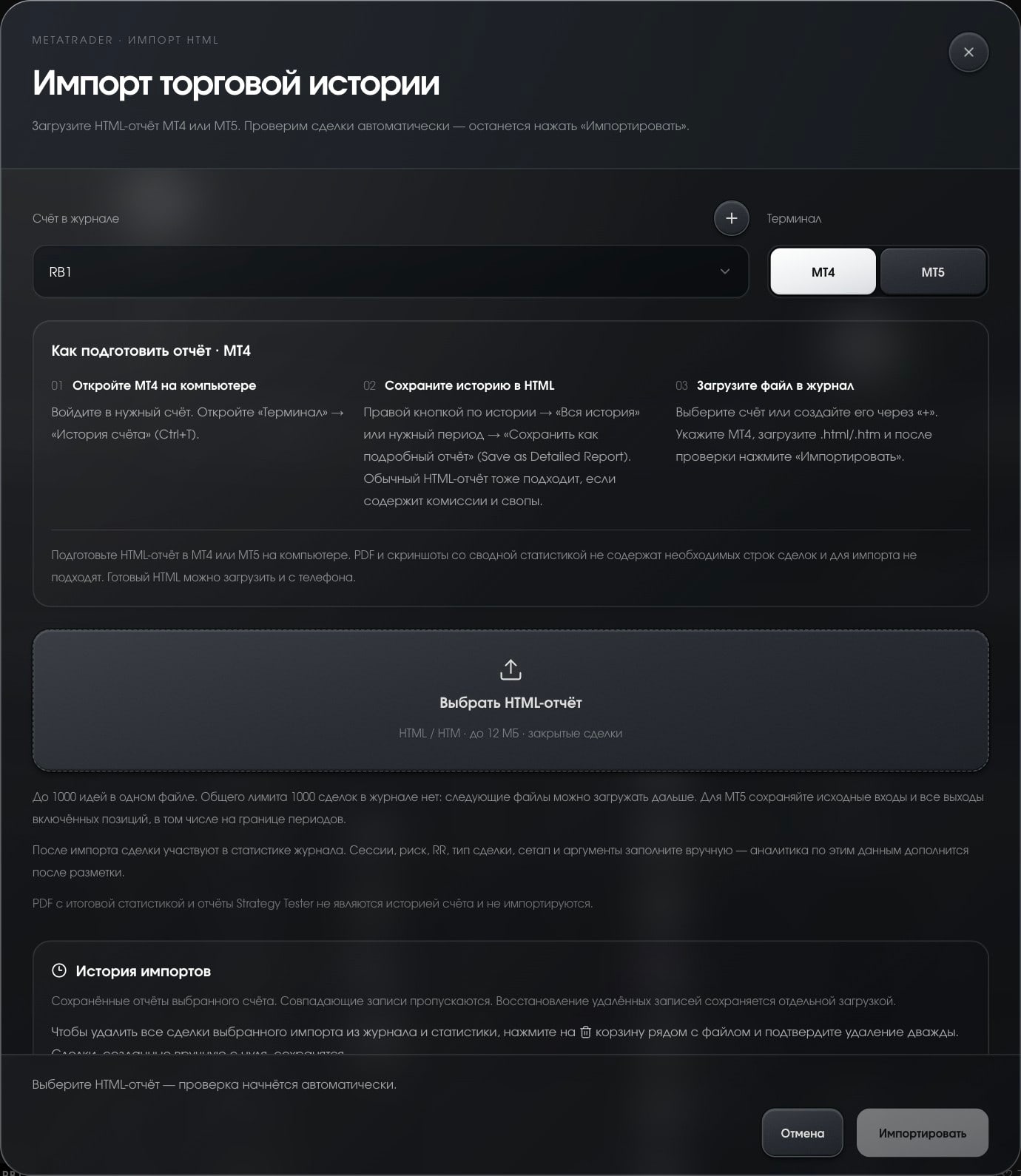
Export the account history from MT4
On the computer, select the intended MT4 account and open Terminal, then Account History. Choose All History or the relevant custom period. In the history context menu, use Save as Detailed Report to produce HTML.
A standard HTML report can also be suitable when the required commission and swap information is present. Use the actual account-history report rather than a Strategy Tester output, PDF or screenshot of the summary.
Check the account identifier and period before moving the file. A report with a familiar filename can still belong to a different account or cover an older window. The MT5 import guide applies to the other terminal and its different position structure.
Understand what a closed ticket becomes
Santrade reads the MT4 Closed Transactions section. Each closed ticket becomes its own trade record, with the cash result assigned to the closing date. Open positions with floating P&L and pending orders are not imported as completed trades.
Partial closes can have separate tickets in MT4. The importer does not automatically join those records because their instrument or date happens to match.
Before comparing a trade count with your own number of decisions, check the unit. A count of closed tickets and a count of personal trading ideas can differ without either count being a duplicate error.
Check the net money reported for a ticket
For the supported MT4 history, the net result combines Profit, Commission, Swap and Taxes with their reported signs. Read the cost columns as well as the headline profit. An amount already included in the net result should not be deducted again.
For example, suppose Profit is $120, Commission is -$3, Swap is -$2 and Taxes is -$1. The recorded net result is $114.
The summary Balance does not by itself prove the opening balance of the selected reporting period. Keep that opening basis separate when you prepare the Santrade account and any cash operations.
Select the matching account and review the preview
In Journal, open the MT4/MT5 import option, select the corresponding trading account and choose MT4. Load the supported file. A confirmed Santrade account is required for import.
Check the account's opening date and initial funding. Historical prop phases also need appropriate dates. The preview can identify new records, matches and discrepancies; read these before the final import action.
The file must use a supported dollar label: USD, UST or USDT, with one-to-one USD accounting. An unsupported currency needs a different verified source or workflow, not a guessed exchange rate entered into unrelated fields.
If a record differs from an existing import, investigate the conflict. The repeat-import guide explains why a changed source is different from an unchanged match. Changed imported positions are not automatically overwritten.
Save, then check a known case
When the preview permits saving, complete the import and wait for its result. Reopen a known closed ticket in Journal and compare the date, instrument, direction and money with the report.
Check any included deposits and withdrawals separately from trade P&L. A starting amount already represented by an opening deposit must not become a second deposit simply because you are importing a history file.
A sample completion note could read: "The selected account and report period match. One closed ticket and its net result have been checked. The remaining question concerns the opening balance source." Record only the checks you have completed.
Keep personal context as a separate step
The import does not assign your session, intended risk, RR, style, setup, entry reasons, news interpretation, Notes or charts. Add what you can support and leave unknown values visible as gaps.
Use post-import additions to decide which details matter for your review. A later recollection can be retained as a later addition, while a contemporary plan remains a different source.
For future sessions, follow the history-update routine using the same account and terminal. Keep the file update separate from your explanation of individual decisions.