

Importing MetaTrader 5 history into Santrade is a file-based process. You prepare an account-history report, select the corresponding journal account and inspect a preview before saving. No broker connection or trading password is needed for that transfer.
Use an HTML or HTM account report containing the required execution rows. A PDF, summary screenshot or Strategy Tester result cannot replace that history.
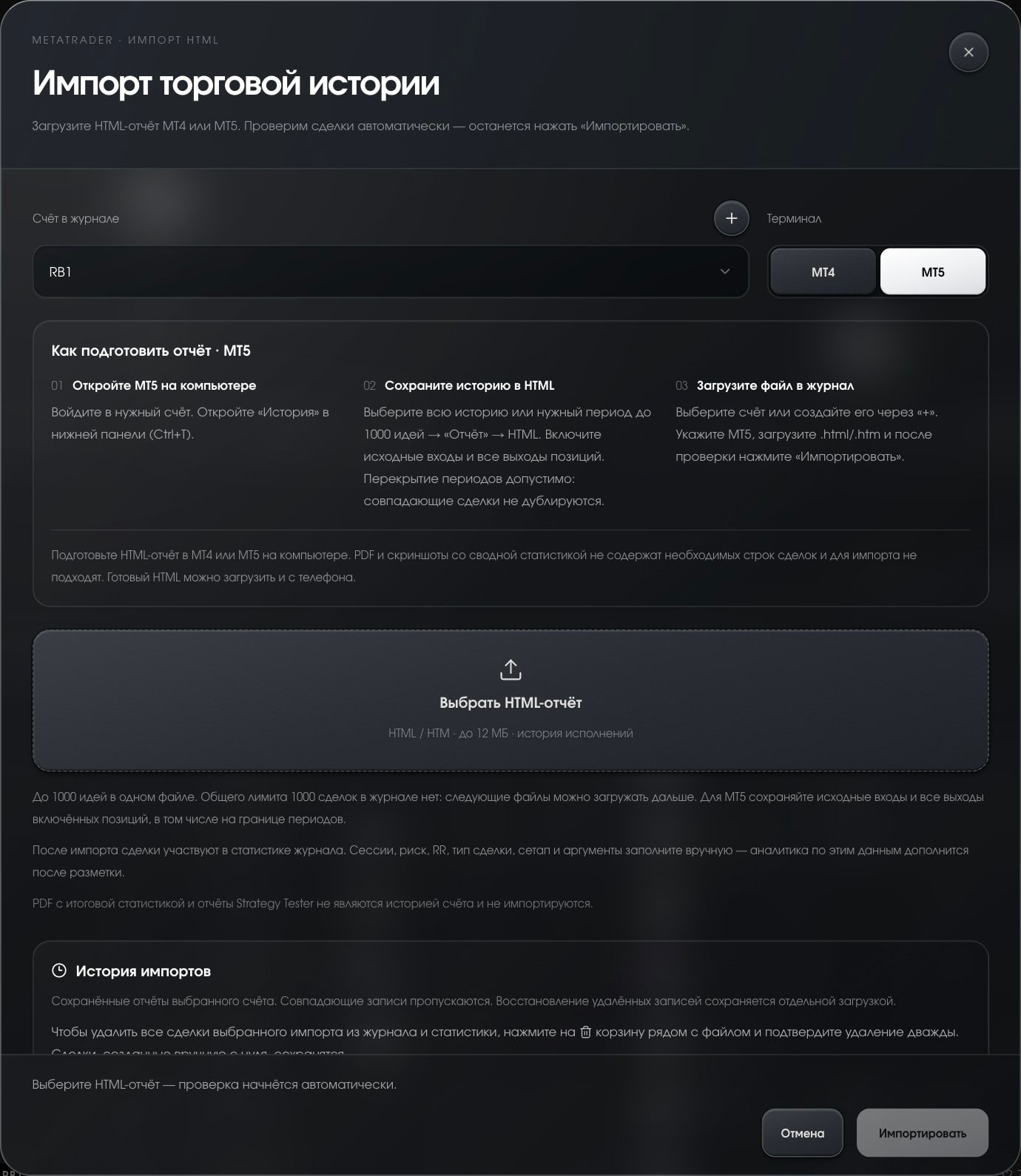
Check the destination account
Sign in with a confirmed Santrade account and open the MT4/MT5 import option in Journal. Choose the trading account that matches the report, or create its record if it does not yet exist.
Check the opening date, initial balance or allocation and any historical prop phases. The account must have existed by the first relevant operation in the file. A similar account name is insufficient if the underlying terminal history belongs elsewhere.
Keep the original report while you complete the checks. If the preview identifies an account-binding or date problem, investigate that problem before saving. Creating another account merely to bypass a conflict would give the same history another misleading home.
Save complete MT5 history on the computer
In the desktop terminal, select the intended trading account and open History in the Toolbox. Choose the required history range, then right-click History and select Report to save HTML. The file must retain the original entries and all exits needed to reconstruct the included positions.
If a position opened before the current week and closed during it, the report still needs its earlier entry. Exporting only this week's exits can leave the importer without the event that established the position.
Use a manageable report rather than cutting a position at an arbitrary date. The current upload checks include a 12 MB file limit and up to 1,000 ideas per file. Further suitable files can be added later; those upload limits are not a total journal cap.
Select the file and inspect its structure
In Santrade, choose MT5 and the matching trading account, then select the HTML or HTM file. A prepared file can also be uploaded from a phone. File preparation still follows the desktop-terminal route.
Check the reported currency. The supported dollar labels are USD, UST and USDT, accounted for one-to-one in USD. That supported treatment does not provide conversion for an arbitrary currency report.
The preview presents positions and their executions. Where appropriate, you can choose how new positions are grouped into an idea. Read the positions and trade-ideas guide before combining records; matching instrument and direction are necessary, while the trading purpose remains your own classification.

Check the preview before saving
Review the reported new ideas, existing matches, cash operations and any issues. A matching record is different from a changed imported position. The latter requires checking the discrepancy rather than an automatic overwrite.
Inspect available balance checks and confirmations. A source opening amount or ending check is useful only where the report contains the information needed for it. Check account funding and money movements if a total is unexpected.
Before importing, check:
- The selected account and terminal match the source.
- Included positions have their original entries and relevant exits.
- Warnings, grouping and any required balance confirmation are understood.
Save and verify the resulting records
Proceed with import when the preview permits it. Wait for the success result and inspect what was created, matched or left open. Then check a known record in Journal against its source and verify the relevant money history.
An unfinished MT5 position can already have actual cash movements. Its completed idea appears after the position fully closes and a suitable updated report is loaded. The journal does not add floating profit as a realized result.
If the import was saved but refreshing the view failed, resolve the displayed refresh problem and inspect the history. The after-session update workflow explains how later reports can extend the same account's records.
Add the context that the report cannot supply
Risk, RR, session, trading style, setup, entry reasons, news labels, Notes and charts are your own additions. Keep unsupported values unknown, particularly where an R-based metric requires an input that the report did not establish.
Use the post-import additions guide to choose a manageable first pass. A verified execution and a personal explanation provide different evidence, and both should retain their source.
If the file actually came from the older terminal, follow the separate MT4 import guide. Its closed-ticket structure has different handling; changing the platform label does not turn one report format into the other.