

Import one Notion page and inspect the saved Workspace document before moving more material. This transfers supported content without creating a live connection between accounts or migrating the whole Notion workspace.
Keep the source export and any current content you need. The import modes have different effects, and complex structures need a check rather than an assumption that the exported page will behave exactly as it did in Notion.
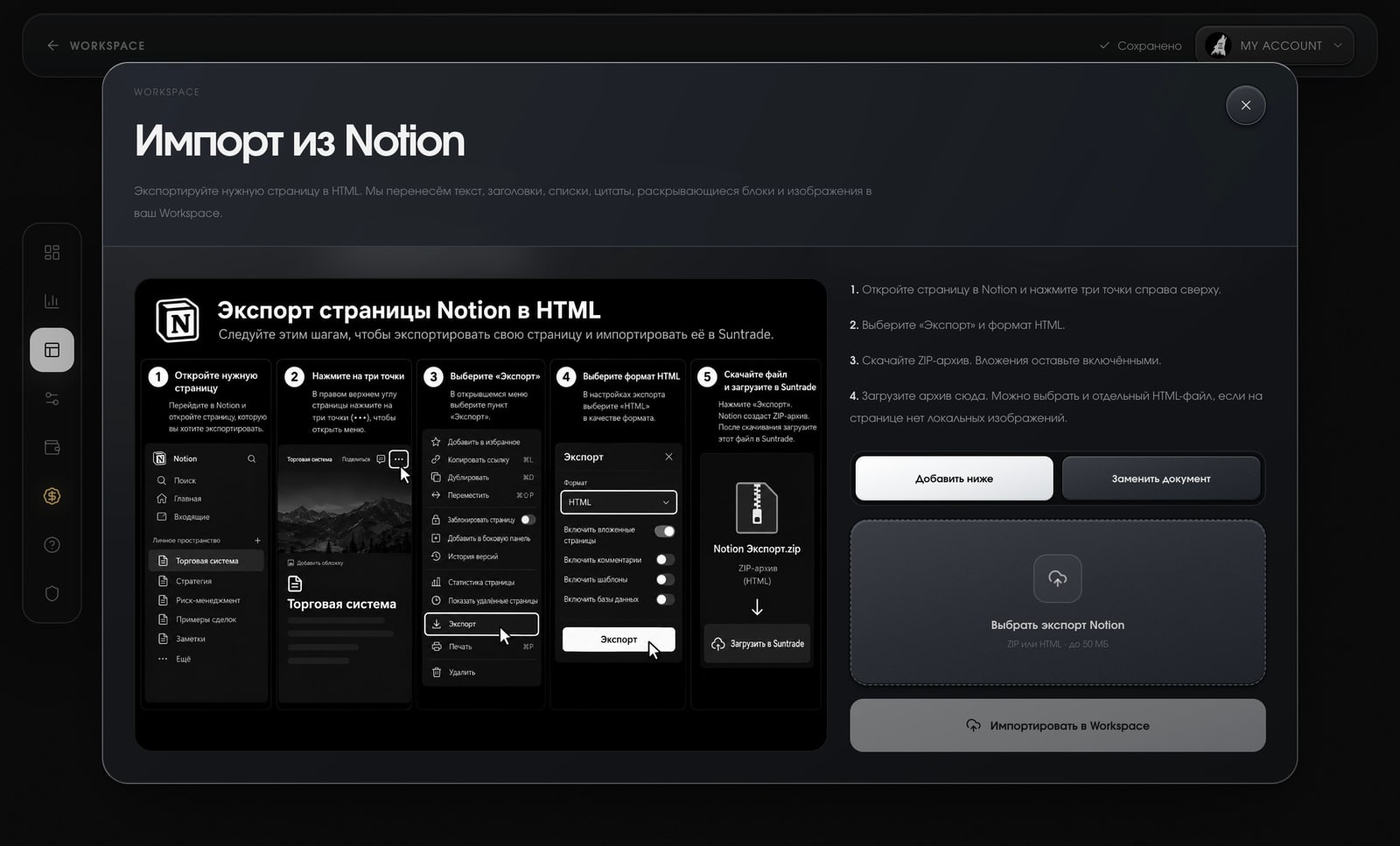
Prepare an HTML page export
In Notion, open the page's export action from its page menu and choose HTML. Some layouts place the action under More. Download the resulting ZIP with the relevant image assets available. Notion can include subpages as separate files, but that does not make Santrade import all of them as a new library.
Santrade accepts a supported ZIP or HTML file up to 50 MB. A standalone HTML file is useful when it does not depend on unavailable local images. Where the page has local attachments, keep them in the export archive rather than selecting only the HTML and expecting those files to appear automatically.
The comparison of Notion and a trading journal covers the broader choice of format. Here the task is a single supported transfer with its result checked in the destination.
Choose append or replacement deliberately
Open the Workspace material and use Import from Notion. The default mode adds the imported body below the current document. The replacement mode replaces that body with the imported document instead.
Preserve existing content you still need before choosing replacement. Import changes the current material and enters its ordinary save process; it does not create an automatic archive of the previous complete document.
A ZIP can contain several HTML files, but the importer selects one page rather than merging every page and database into separate materials. For a predictable first transfer, use an export prepared around the page you intend to bring over. Do not assume that a subpage became another saved Workspace document.
Check the supported text structure
Inspect headings, paragraphs, ordinary lists, quotations and expandable content after import. Compare the important conditions with the original. A visually similar result is not enough if a qualification or part of a rule is missing.
HTML table rows become ordinary text paragraphs with the cell contents separated. They do not retain native editable table cells. Decide whether a short list or another supported document structure would make that information clearer in Workspace.
Lists import as ordinary bulleted or numbered lists. Notion's interactive checklist items and checked state are not restored as native checklist state. Rebuild the checklists and their intended checks manually in the editor, then verify them before using the page as a preparation procedure.
Verify images and document metadata separately
Available local images in the archive can be uploaded into the destination document. An image whose file is absent from the export cannot be supplied merely by its old local path. Check each important chart and caption after the operation.
Then inspect the material's title, category, tags and other descriptive fields yourself. Importing the body does not automatically migrate every Notion property or all Workspace metadata. The model-document guide can help reorganize the transferred content around conditions and evidence.
Check complex features separately. Embedded widgets, database behaviour and permissions are outside this transfer; the importer neither recreates a Notion application nor establishes API sync.
Wait for the saved result
Let image operations finish and check the material's save state. Reopen the document and compare its important text and media with the retained source. Resolve errors before treating another device's view as the completed transfer.
A sample check could say, “Main rule and cancellation text present. Table information is now paragraphs. Checklist rebuilt manually. Key images reopened successfully.” These are review items you can perform, not an automatic validation report generated by the importer.
Place a working model in the playbook only after this check. A successfully selected file is the beginning of the operation, not proof that every source feature survived it.
Choose which version you will maintain
Decide where future edits to the material belong. Changes made in Notion do not automatically update the imported Workspace page, and editing the destination does not update the original. Keep that relationship clear in your own source notes.
Use the knowledge-base structure to keep the retained source separate from your working explanation. Record any conversion limits with the document, including changes to tables, checklists or other content you needed to rebuild.